

In this modern world, all businesses promote their products or services through ads. For users, seeing ads can sometimes be distracting from their work. Ads can be shown on websites or when watching videos. Here, Pi-Hole comes to the rescue for the individual.
You are asking why we need this if we can install an ad blocker in the web browser?
- You have to install the same extension in all the browsers.
- Some websites may detect ad blockers and ask you to disable them to view the content.
- Using extensions may increase CPU usage in the background.
- It will improve network performance.
If you are in the tech space and tired of watching countless ads, this practical article is for you.
Requirements
- Any Raspberry Pi or a computer
- Internet connection
- Router’s Admin Panel
I am using a Raspberry Pi 5 for building a Pi Hole.
How Pi-Hole actually works?
When you click a link to open a website or an online video. The server received the request and will retrieve all the necessary information to serve the client or you. Alongside the main request about the content, there is another request for the ad server.
Here comes DNS to play its part.
When you enter a domain name, it goes to the DNS server, where it is translated into an IP Address. When your device tries to connect to an ad or tracker domain, the Pi-Hole checks the request against its blocklists and returns nothing.
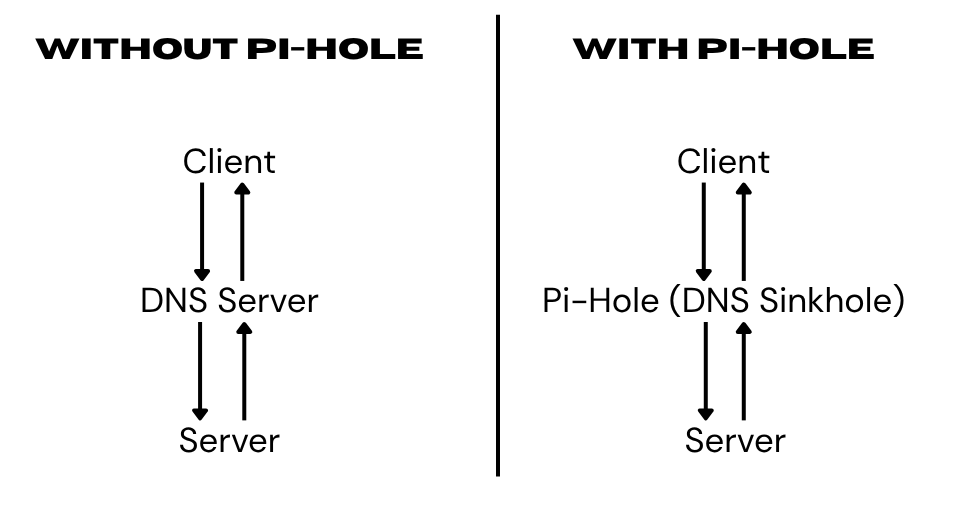
Your Raspberry Pi will sit between the router and your devices, as shown below. The Raspberry Pi will act as a DNS sinkhole, not just blocking ads but also blocking certain unwanted or malicious websites.
Installing Pi-Hole
Refer to the official GitHub page.
We have to run a few commands to install, as you can see below.
- Clone the GitHub repository.
git clone --depth 1 https://github.com/pi-hole/pi-hole.git Pi-hole- Go to the folder and run the installer.
cd Pi-hole/;ls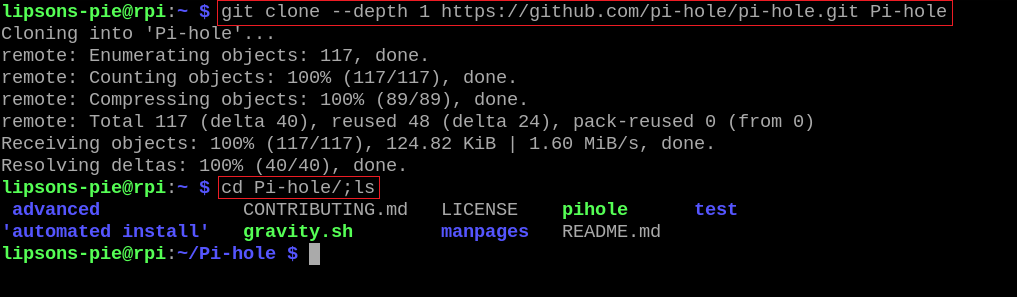
We can move to the directory where the files are downloaded and see the files.
- Now, it asks for some settings to configure the tool according to your needs. Below are all the settings.
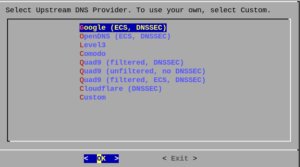
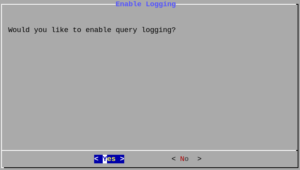
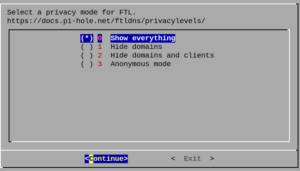
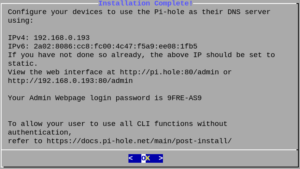
- We can go to the login page to check if its installed correctly.
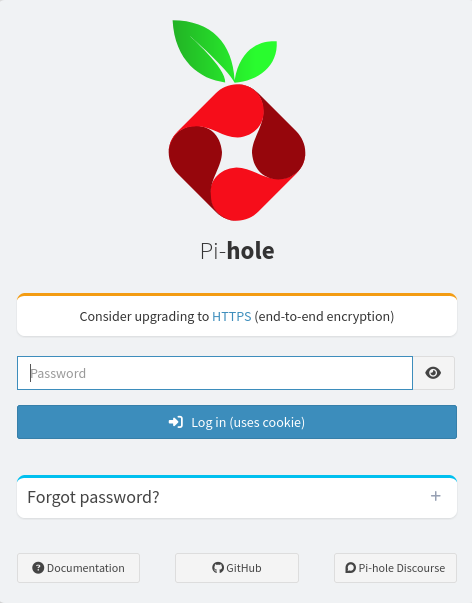
When the Pi Hole is installed, it will show you the self-generated password to login. After that, you can change the password of your own.
Dashboard Overview
After logging in, you will see the dashboard as shown below.
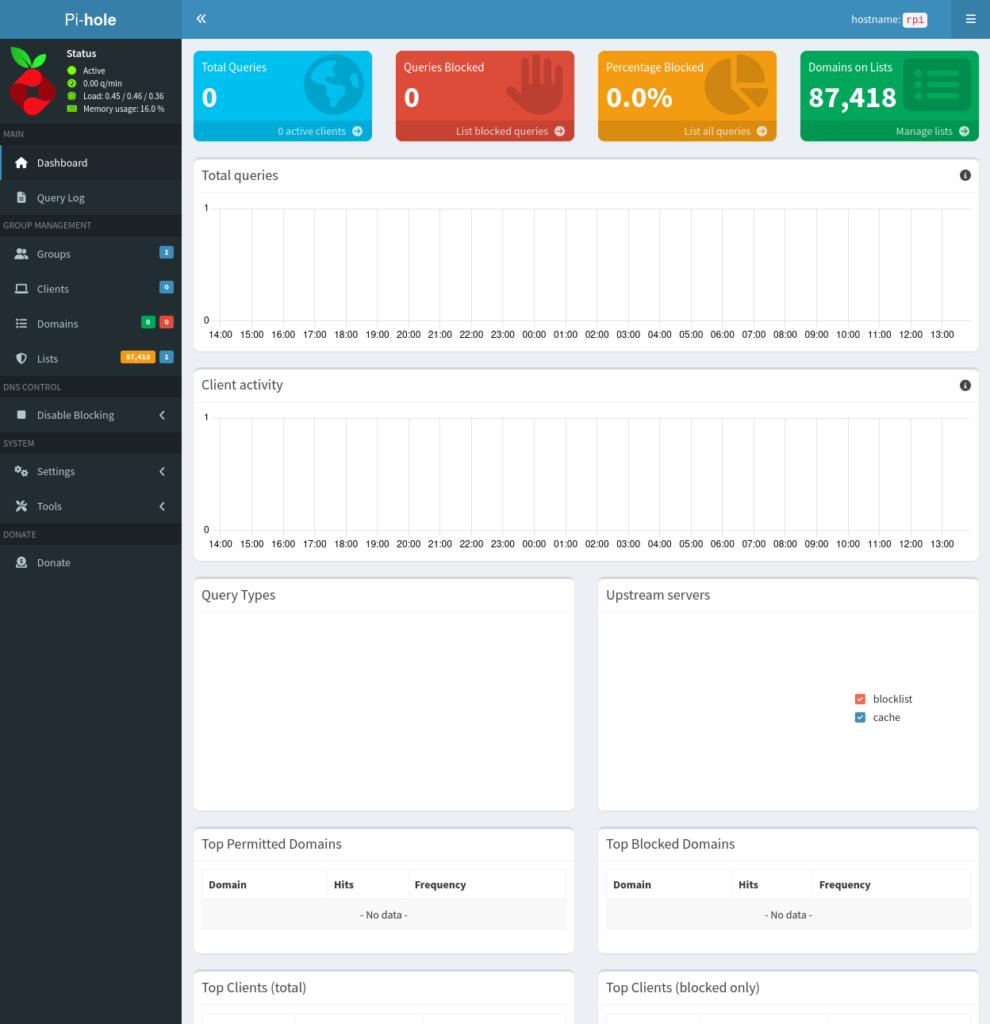
Top Statistics Cards
- Total Queries: Total DNS requests made by all devices on your network.
- Queries Blocked: How many were blocked by the block list?
- Percentage Blocked: The ratio of blocked to total queries.
- Domain on Block list: Total number of blocked domains across all lists.
Charts & Tables
- Queries over the last 24 hours: A time-series graph showing query volume and blocks over time.
- Top permitted domains: Most frequently allowed domains being queried.
- Top blocked domains: Most frequently blocked domains.
- Top Clients: Which devices on your network are making the most DNS requests?
- Query Types: Breakdown of DNS record types (A, AAAA, MX, etc).
- Upstream Servers: Which upstream DNS resolvers are being used (e.g, Google, Cloudflare).
Navigation Menu
| Menu Item | What it does? |
|---|---|
| Dashboard: | Returns to the summary stats page. |
| Query Log: | Live or historical log of every DNS query – shows domains, client IP, status (blocked/allowed), and which list triggered the block. |
| Blocklist (adlist): | Manage subscription block lists – add, remove, or update third-party lists. |
| Whitelist: | Domains you want to always allow, even if on a block list. |
| Blacklist: | Domains you manually want to always block. |
| Local DNS: | Set custom DNS records for local host names (e.g, map nas.home to 192.168.0.1). |
| Groups: | Organise clients into groups and apply different block lists per group. |
| Clients: | All of the devices in your network will show up here. |
| Settings: | Configure DNS upstream servers, DHCP, API, privacy levels, and more. |
| Tools: | Includes utilities like Network (ARP table), Update Gravity (refresh block lists), and the Pi-hole diagnosis tool. |
| Logout: | End your admin session. |
Configuration
Before we test it out, we need to make two changes:
DHCP Settings
You have to go to the router’s admin panel and disable the DNS on the router. After that, go to the DHCP settings in the Pi-Hole and enable it.
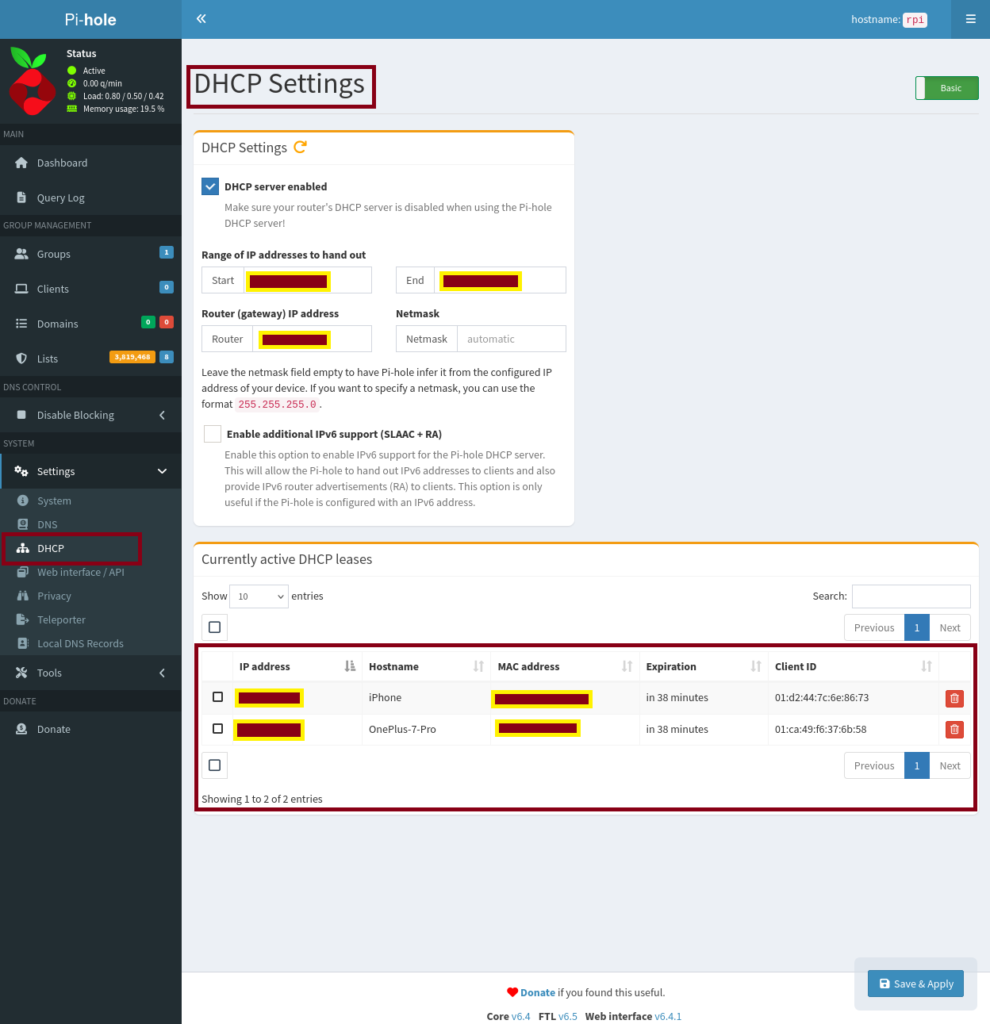
With this, the traffic starts flowing through the Pi-Hole instead from the router’s DNS.
Lists
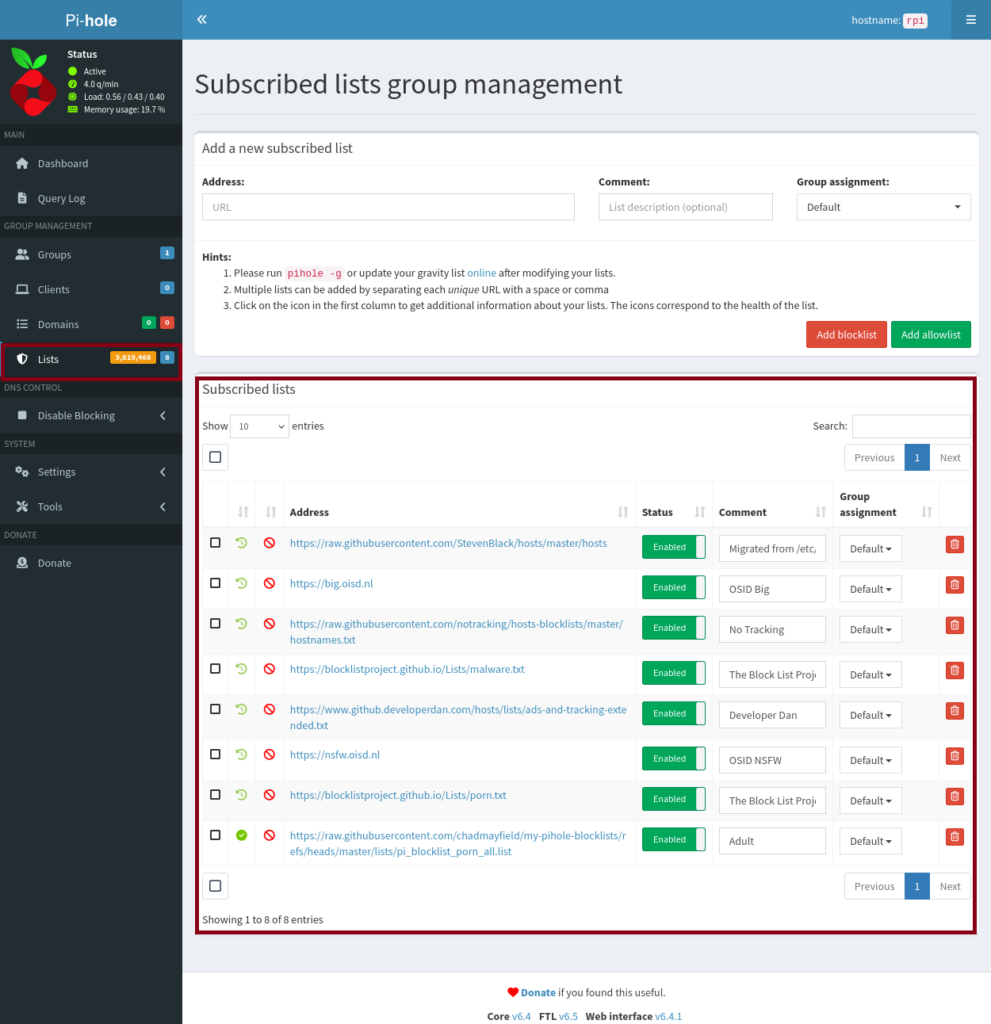
This is optional to configure, only depends on you what you want to block or allow on the network. I have listed a total of eight different lists I gathered from different GitHub repositories.
I have blocked ads, trackers, malware, and nsfw websites.
Once you have added the list to Pi-Hole, you have to run a command in the terminal. So, the list will be active on the Pi-Hole.
sudo pihole -g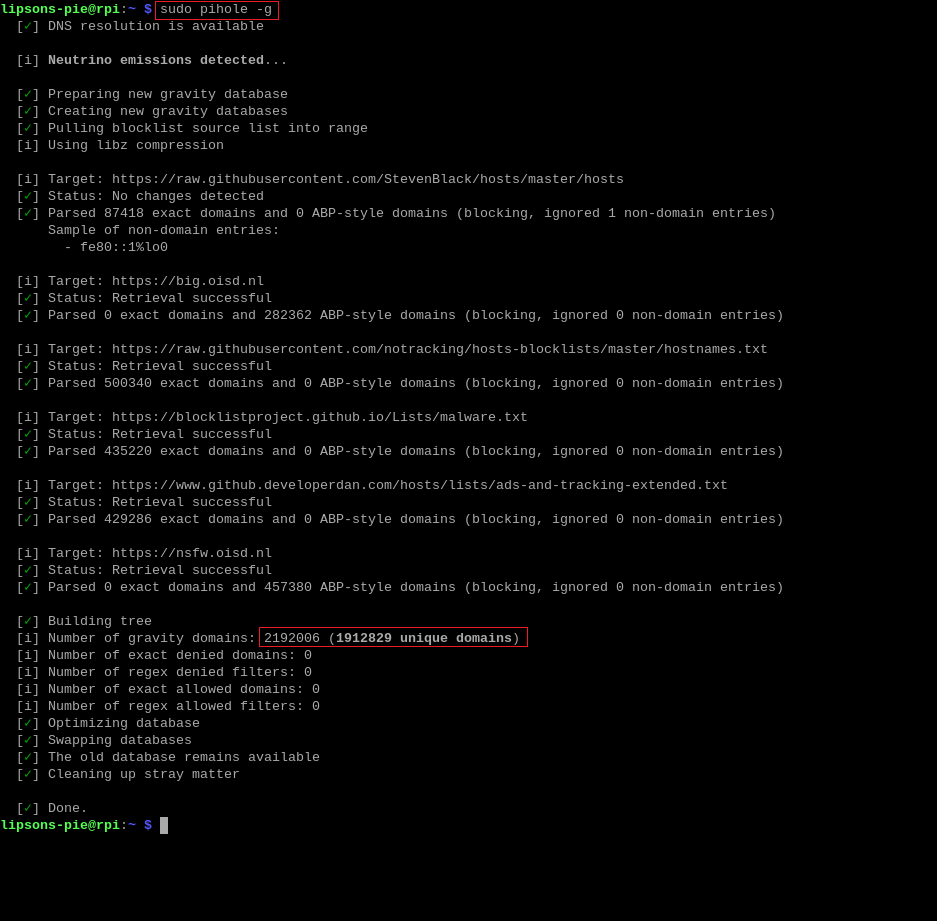
Results
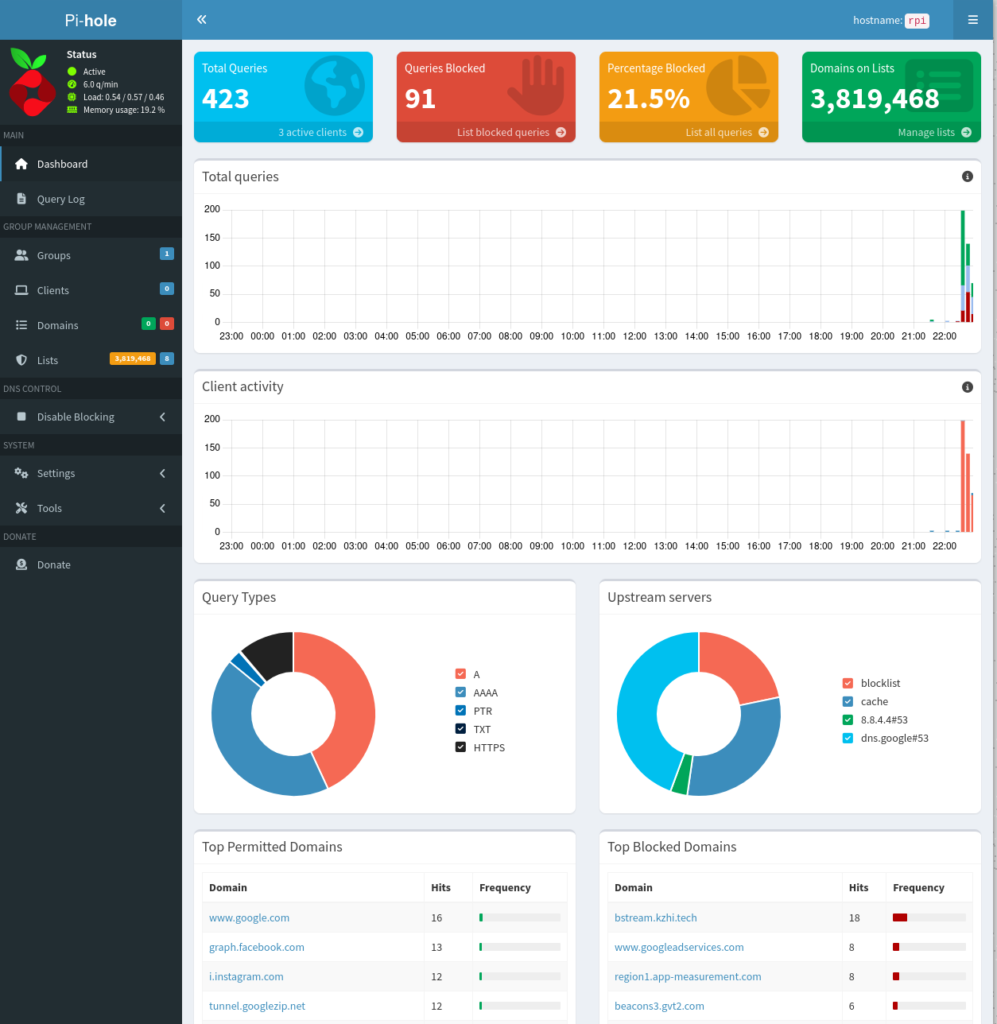
Overview
This is a real Pi-Hole admin dashboard running on a device named rpi (a Raspberry Pi 5). I waited 30-40 minutes to get some data in the dashboard, and I got the result shown above on my Raspberry Pi. The system is actively filtering DNS traffic across the local network, showing live stats and an activity chart.
Status Panel
The sidebar shows Pi-Hole is Active, processing 6.0 queries per minute, with a system load of 0.54/0.57/0.46 and memory usage of just 19.2% – very lightweight for an always-on network service.
Summary Stat Cards
These four cards give you an instant health check of your network’s DNS activity:
| Card Value | What does it mean? |
|---|---|
| Total Queries | 423 Total DNS lookup made by all devices on the network. |
| Queries Blocked | 91 DNS requests intercepted and blocked by Pi-Hole. |
| Percentage Blocked | 21.5% Roughly 1 in 5 DNS requests were an ad, tracker, or unwanted domain. |
| Domains on Lists | 3,819,468 Nearly 3.8 million domains across all active block lists. |
Charts
- Total Queries (24-hour graph): The chart runs from 23:00 the previous day to 22:00 the current time. The network was largely idle through the night and morning, with a noticeable spike of activity around 22:00, shown in light (allowed) and red (blocked).
- Client Activity: A companion graph tracking DNS requests per device over the same 24-hour window. The spike at the far right mirrors the total queries chart, indicating a brief period of high activity from one or more clients recently.
Query Types
This donut chart breaks down the type of DNS records being requested:
| Query Type | Description |
|---|---|
| A | IPv4 address lookup (most common – shown in red/orange) |
| AAAA | IPv6 address lookup (shown in blue) |
| PTR | Reverse DNS lookup – IP to hostname |
| TXT | Text record queries (e.g, SPF, DKIM for email) |
| HTTPS | Service/HTTPS record lookup (newer DNS type) |
The chart is dominated by A and AAAA records, which is typical for a home or small office network.
Upstream Servers
This donut chart shows where Pi-Hole forwards allowed DNS queries:
| Server | Role |
|---|---|
| blocklist | Queries answered locally from the blocklist (blocked) |
| cache | Queries answered from Pi-Hole’s local DNS cache (fast, no upstream needed) |
| 8.8.4.4#53 | Google’s secondary DNS server |
| dns.google#53 | Google’s primary DNS resolver |
Both upstream resolvers here are Google DNS, which is a common default setup.
Top Permitted & Blocked Domains
These two tables at the bottom reveal what your network is actually doing:
| Domain | Hits |
|---|---|
| www.google.com | 16 |
| graph.facebook.com | 13 |
| i.instagram.com | 12 |
| tunnel.googlezip.net | 12 |
Top Blocked Domains (intercepted by Pi-Hole)
| Domain | Hits |
|---|---|
| bstream.kzhi.tech | 18 |
| www,googleadservices.com | 8 |
| region1.app-measurement.com | 8 |
| beacons3.gvt.2.com | 6 |
The blocked list is a great example of Pi-Hole in action. Above blocked domains are well-known and analytics trackers that Pi-Hole silently drops before they ever reach your devices.
Conclusion
Pi Hole is one of the most practical home lab projects you can run – low cost, low power, high impact. Once it’s running, every device on your network gets ad and tracker protection with zero client-side configuration.
Stack it with Unbound and a solid block list set, and you have a private, fast DNS resolver that most people would never think to build.
References
- The ad blocker your ISP doesn’t want you to have by CyberMaddy
- DNS Explained: Domain Name to IP Address Translation